How to Return a Kindle Book to Your Library
Have you ever stressed about not getting your library books back before their due date?
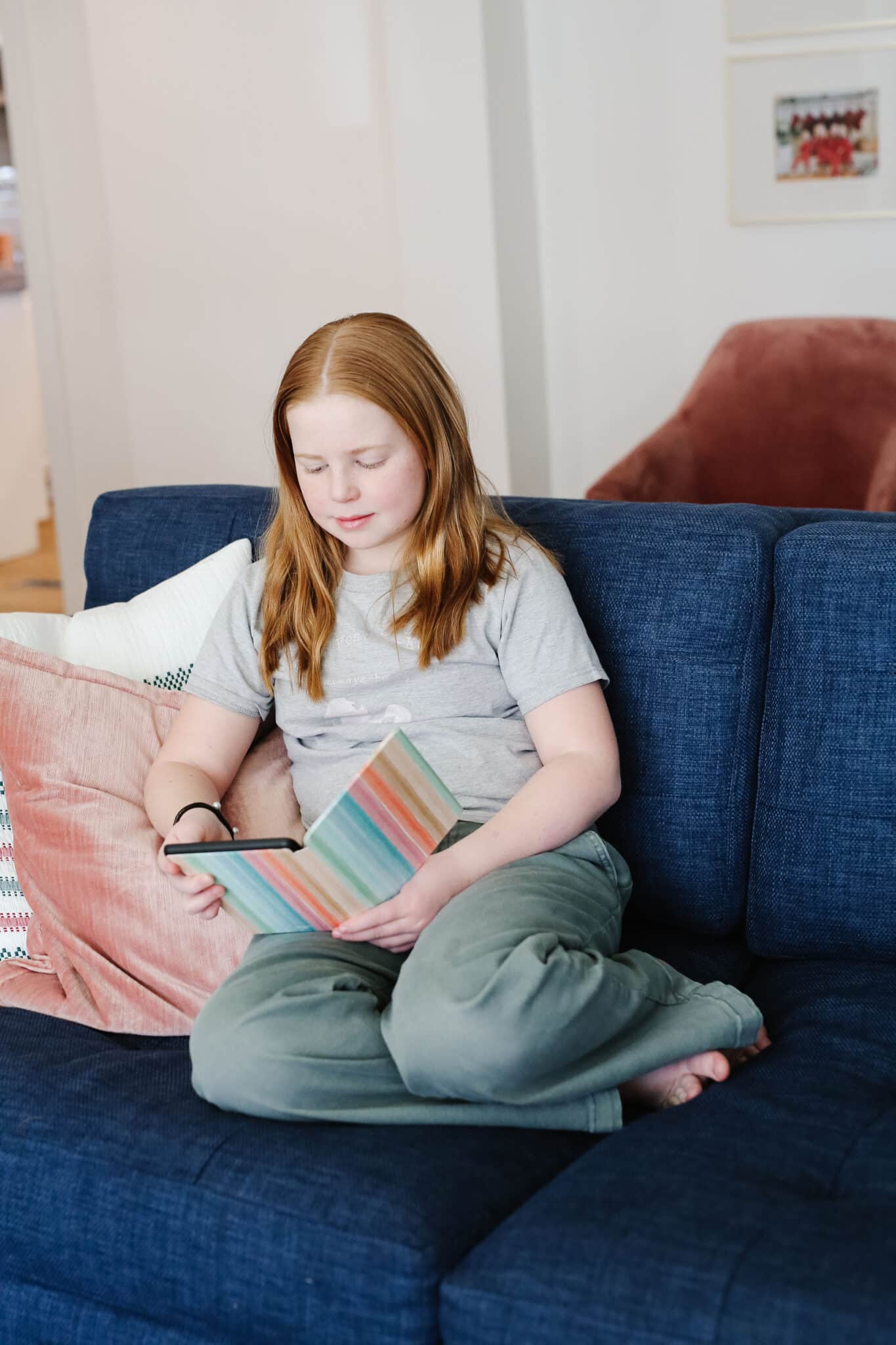
This is my husband – he hates library due dates!
(If you struggle with this, I have a post with a bunch of tips to avoid library fines!)
The good news is, when it comes to borrowing Kindle books from your library you don’t have to worry about those pesky fines!
Kindle books are automatically returned to your library at the end of their lending period, which means you can borrow without the fine stress looming. Another reason I love my Kindle so much!
If you do want to return a Kindle book to your library early so others can check it out or to open up another lending slot for yourself, let me show you how to to it!
Luckily, it’s very simple – there are a few different ways you can return your Kindle books and we’ll talk about them all.
How to Return a Kindle Library Book Using the Libby App
This option definitely requires the most steps (but is still easy!)
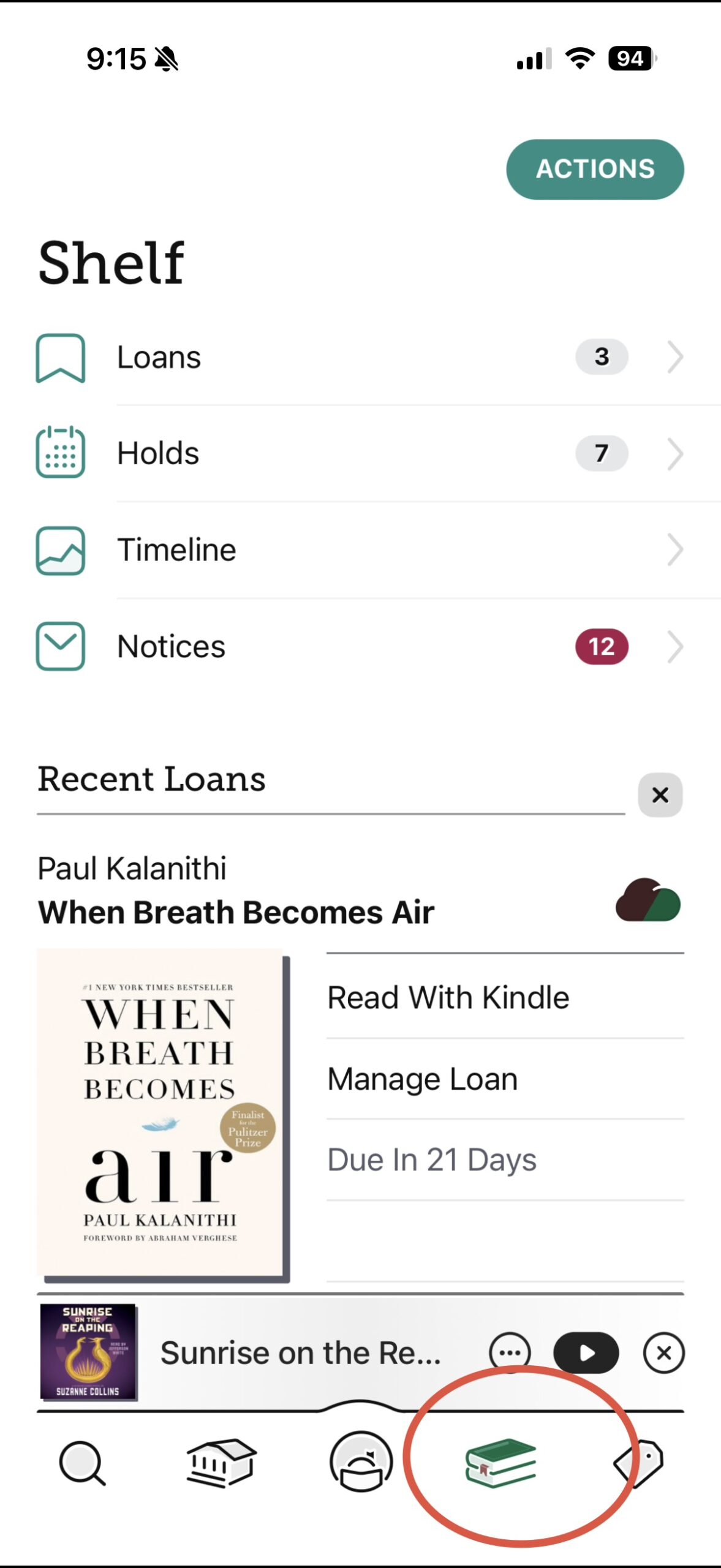
First, open up your Libby app and go to “Shelf” (the icon is a little stack of books).
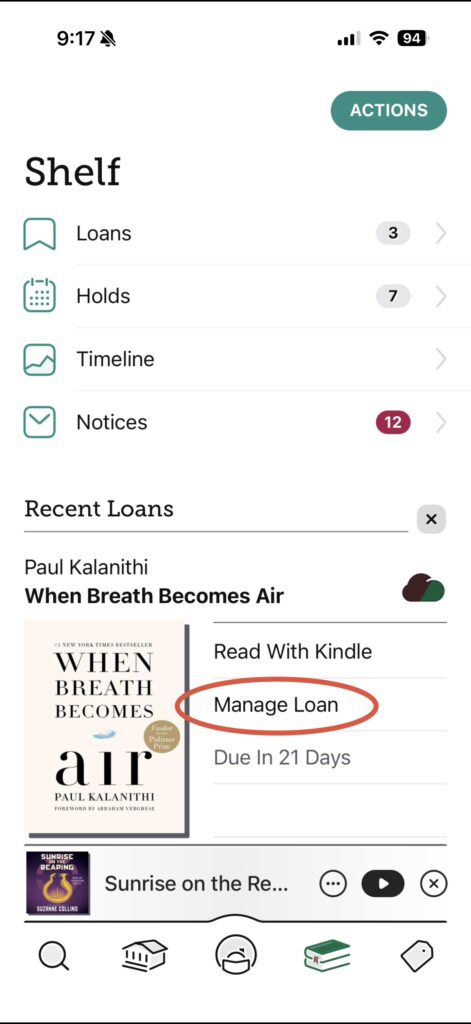
Next select, “Manage Loan.”
Then select “Return Early”
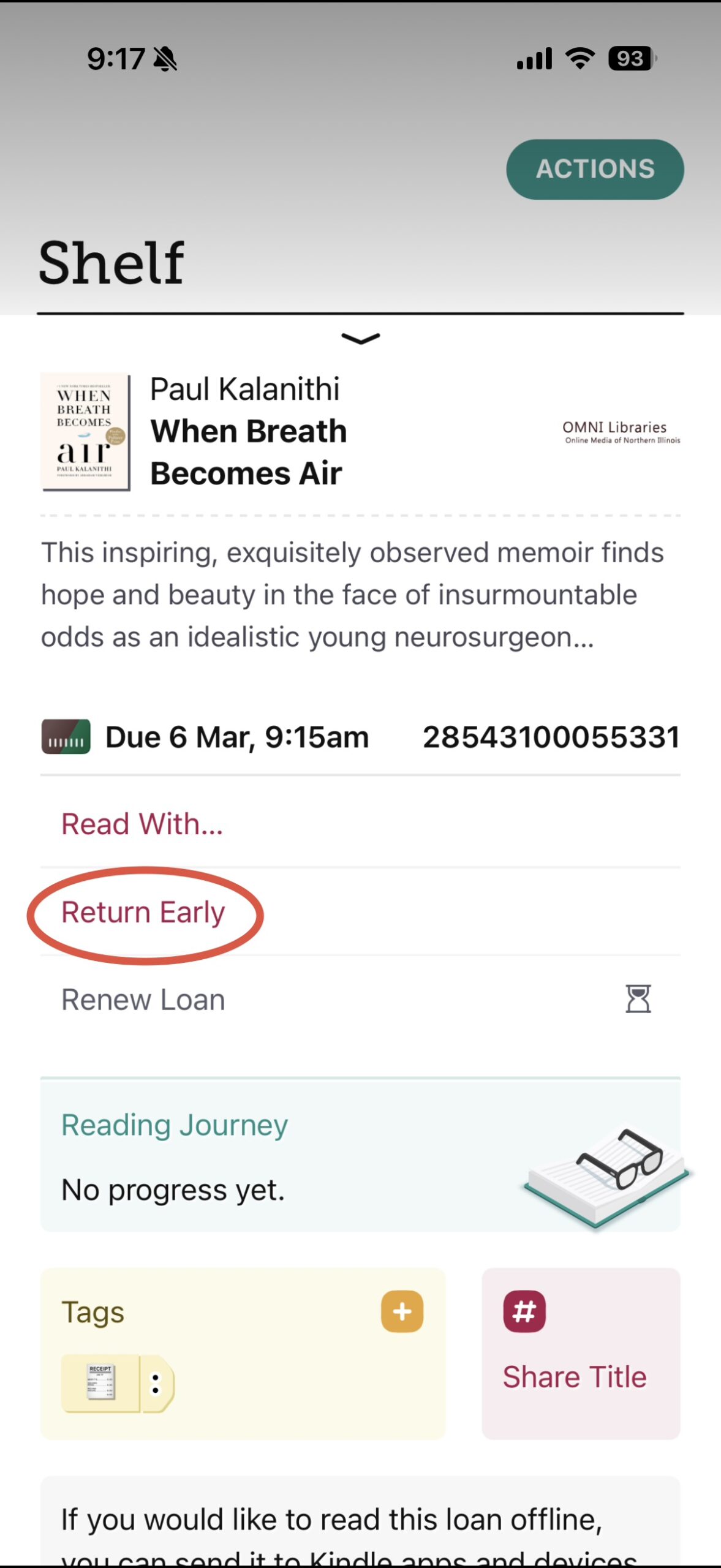
Libby will show you the message below indicating your library Kindle book will need to be returned to your library via Amazon. Select the option “Return with Kindle.”
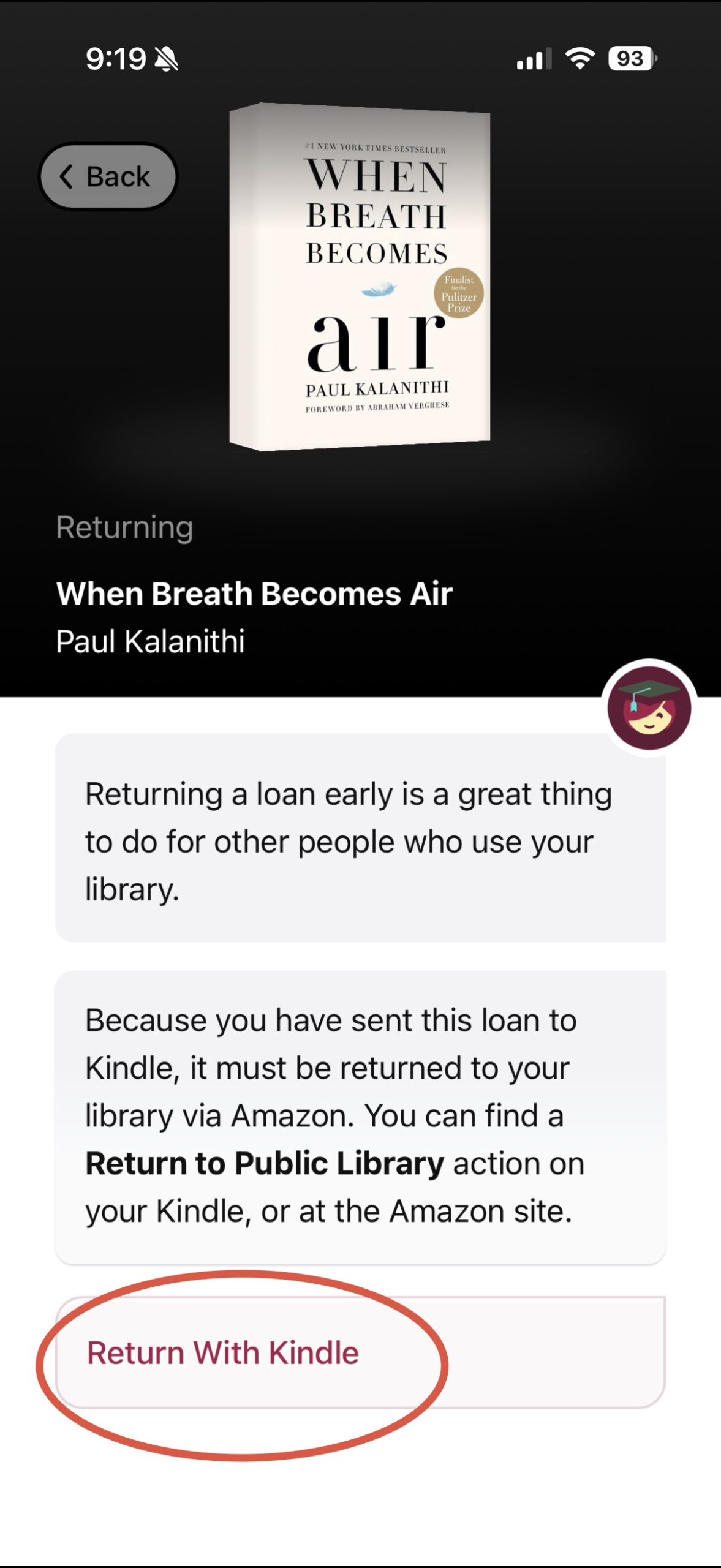
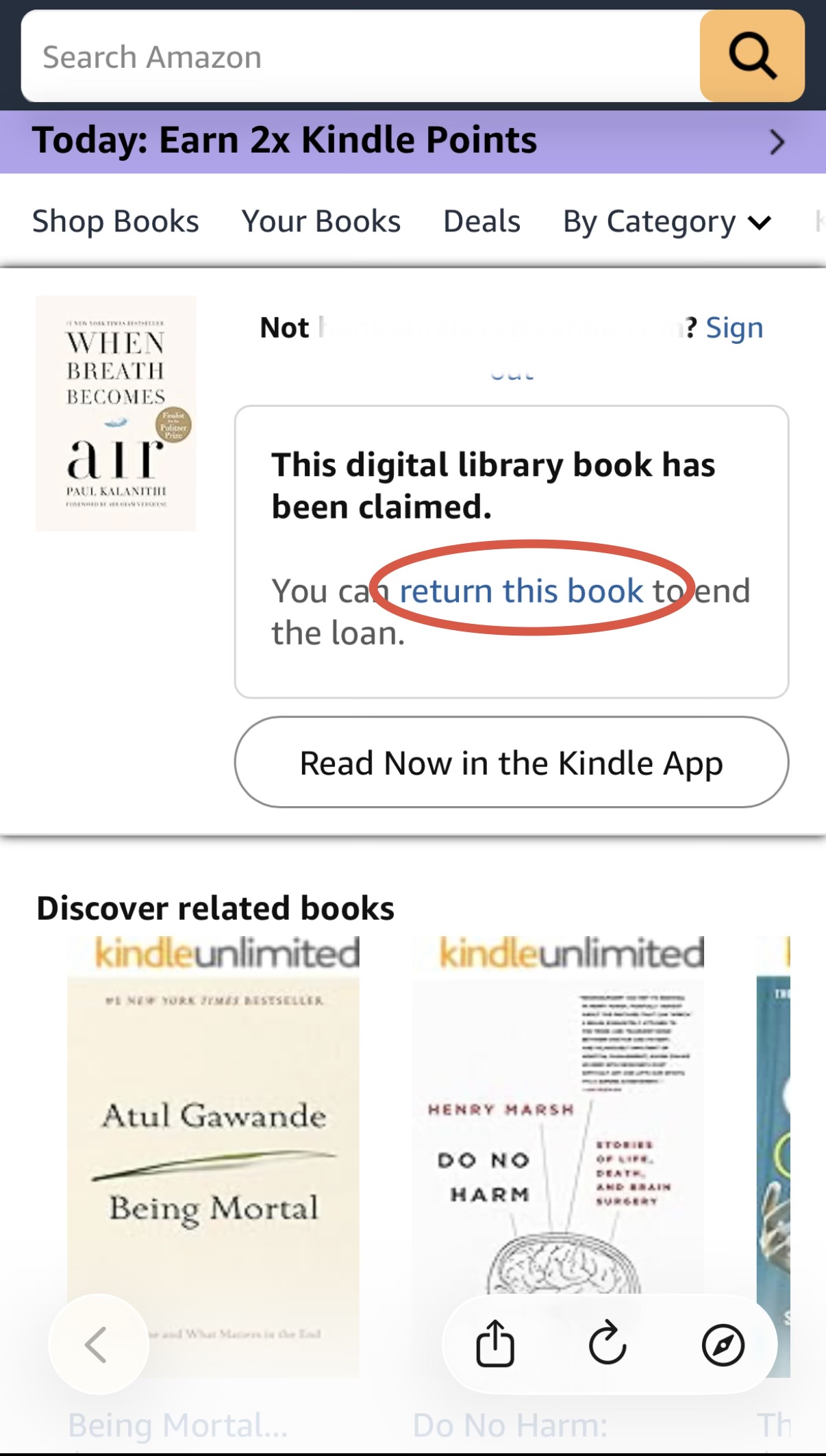
Next, Libby will take you over to Amazon where you will select “Return This Book.”
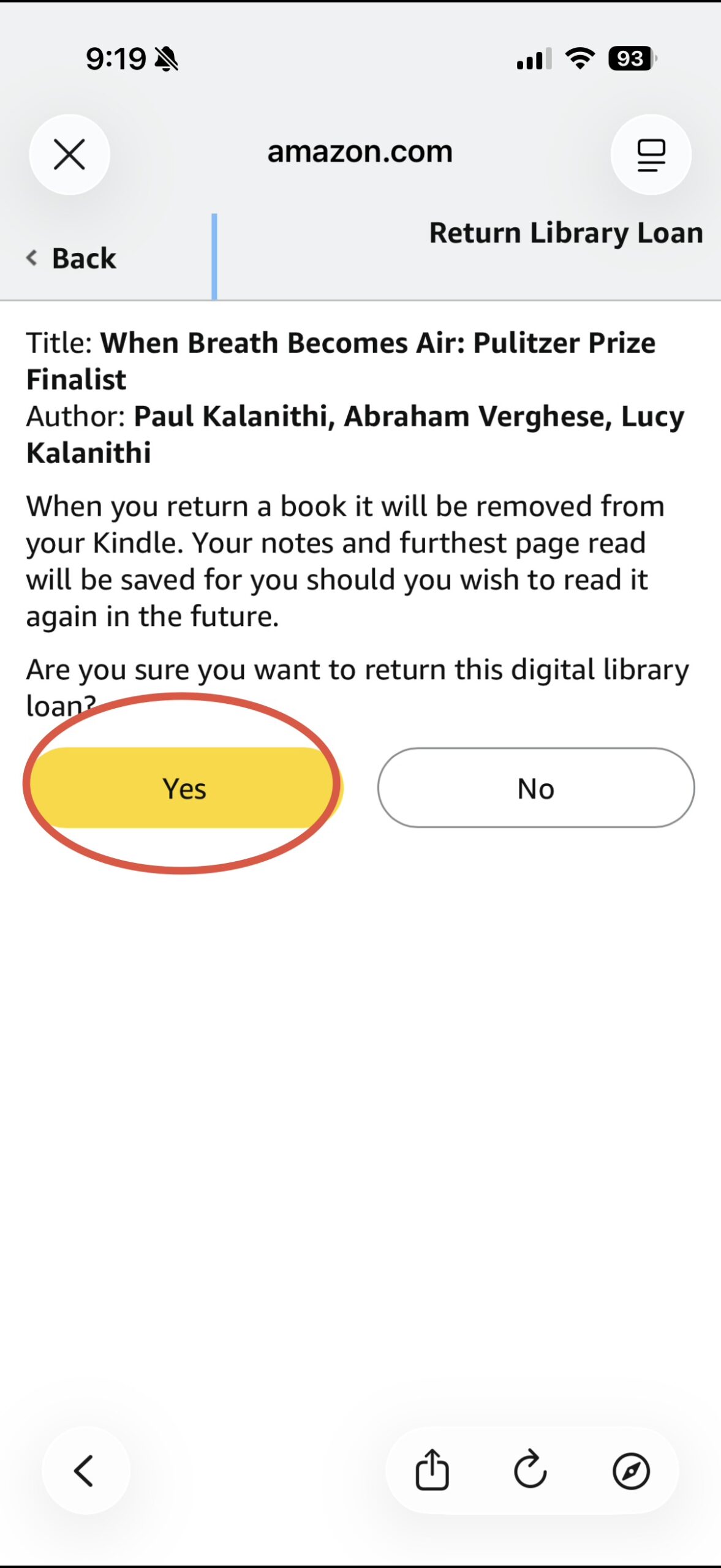
They will give you one more chance to keep the book. Just select “Yes” if you indeed do want to return the book.
Libby will then ask you if you returned the book. Definitely select “Yes, I’ve Returned the Book” to allow that lending space to be freed up on your Libby shelf.
How to Return a Kindle Book to Your Library Using the Kindle App
This process is a much easier way to return a Kindle book to your library, because it only requires three simple steps.
Open up your Kindle app. Go to the “Home” screen.
Find the title you want to return, then tap and hold the cover of the book you want returned.
A menu will pop up. Select “Remove From Library”. Keep in mind, if you select “Remove Download” it will NOT return it to your library; it only removes it from your Kindle.
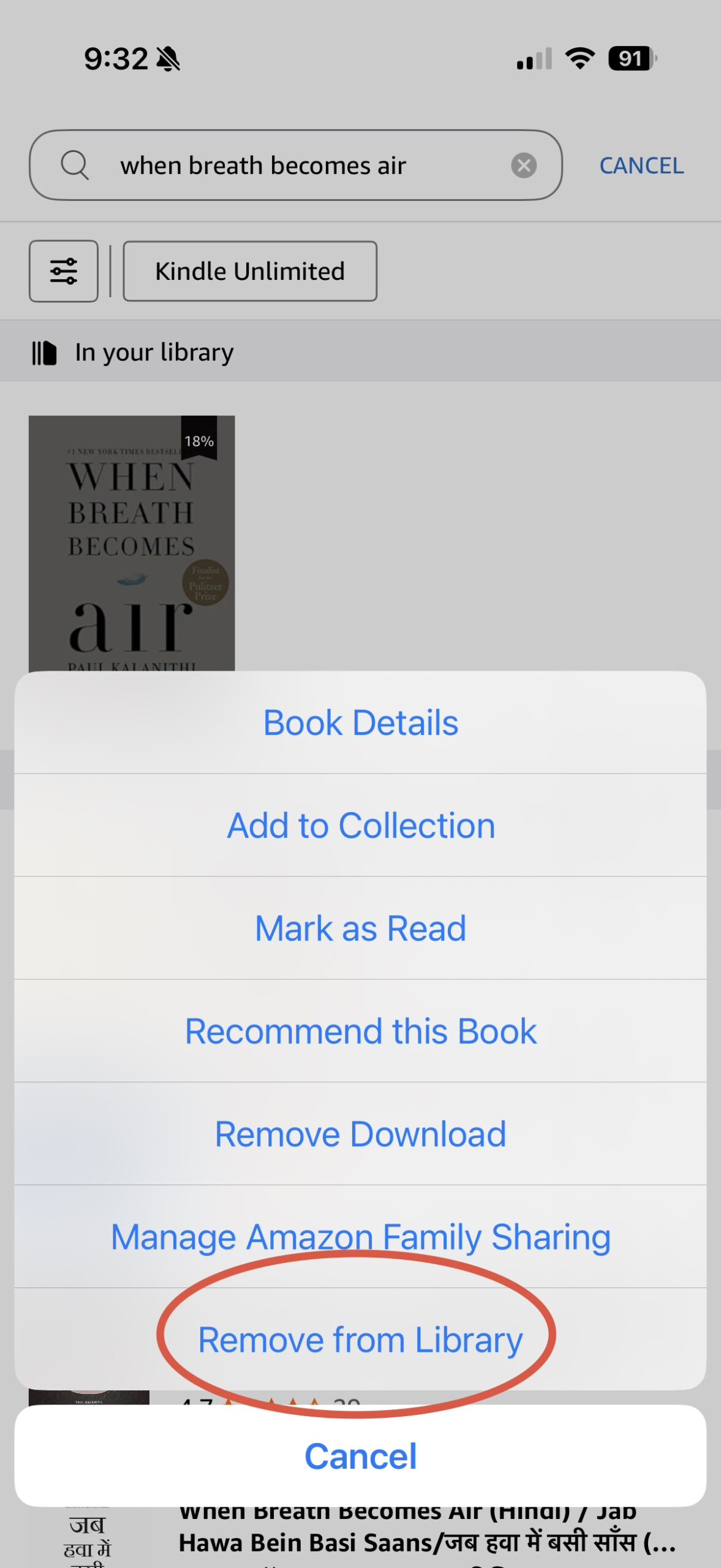
Now that you’ve selected “Remove From Library” it will be removed from Libby, your content library on Amazon, and your Kindle library.
How to Return a Kindle Book to Your Library Using Your Kindle eReader
This option is also very simple. First, go to your “Home” screen on your Kindle.
Find the title you want to return, click the “three dots” on the cover of the book.
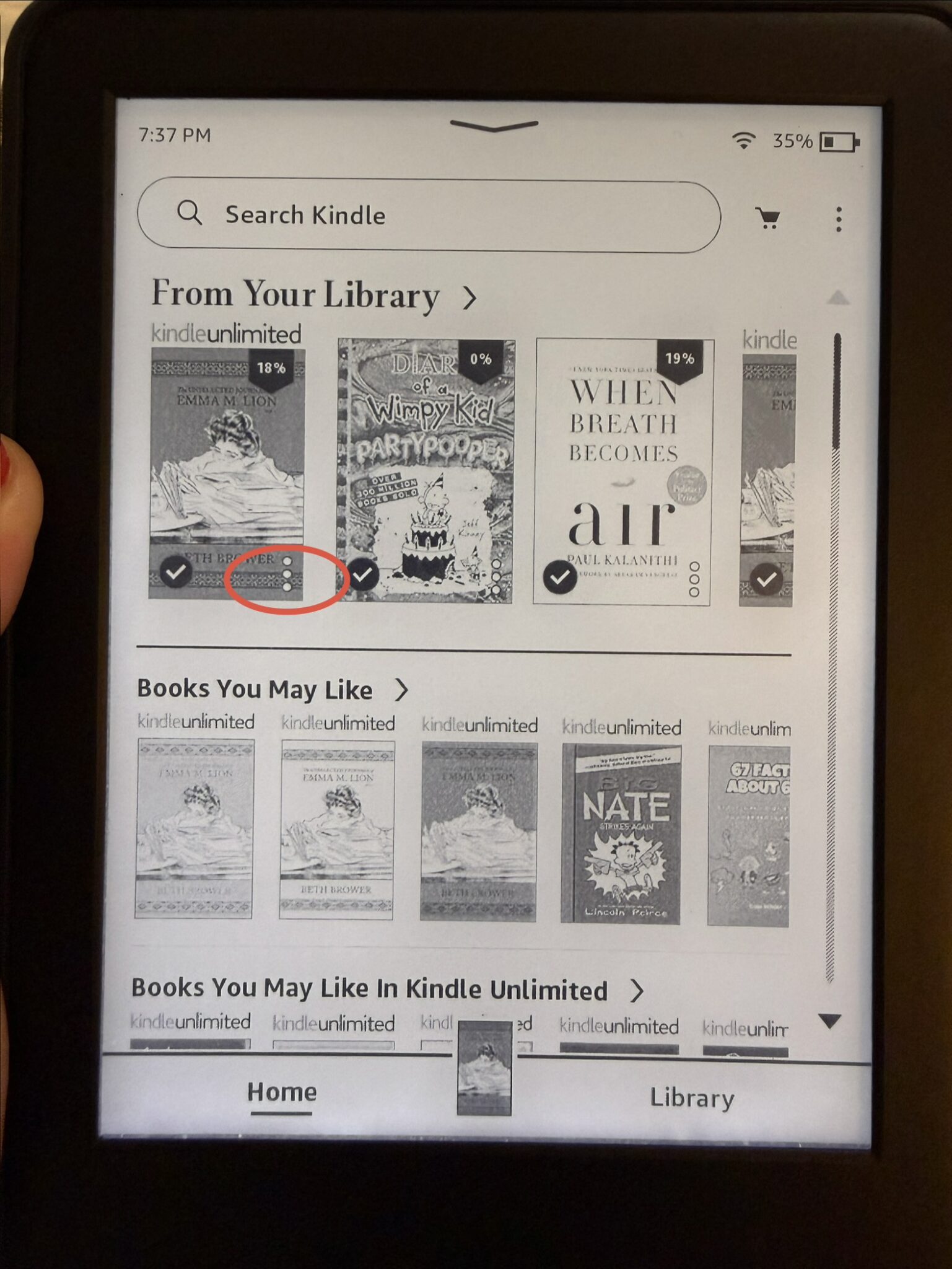
A menu will appear and it will look a little different for older vs. newer devices. If you have a newer device, select “Remove from Library.” An older device, select “Return to Public Library.” Click the option they give you.
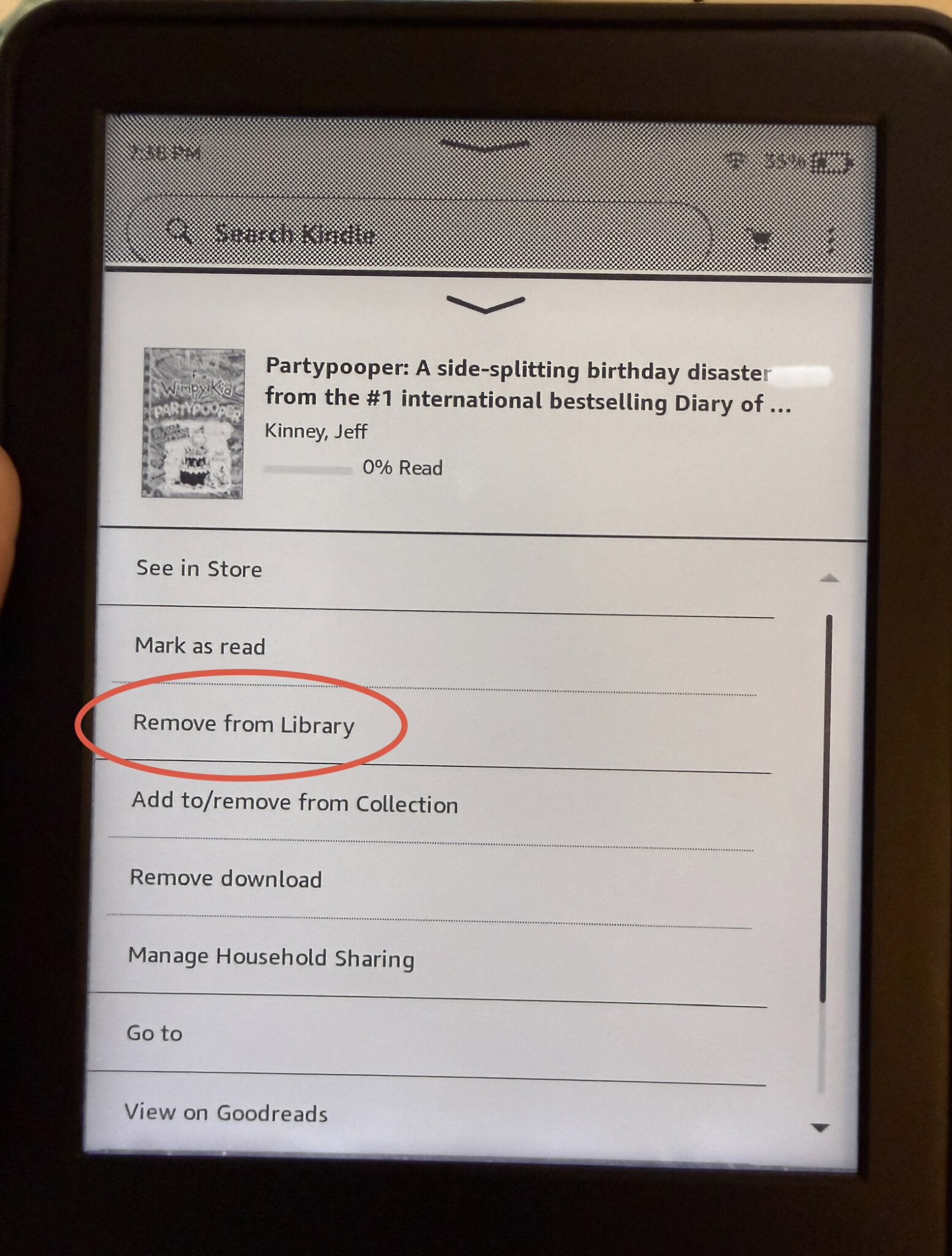
It should now be returned and removed from all of your devices. One thing to note, you aren’t able to return any books to your library directly from your Kindle if you are logged into a kid account.
How to Return a Kindle Book Using Your Amazon App
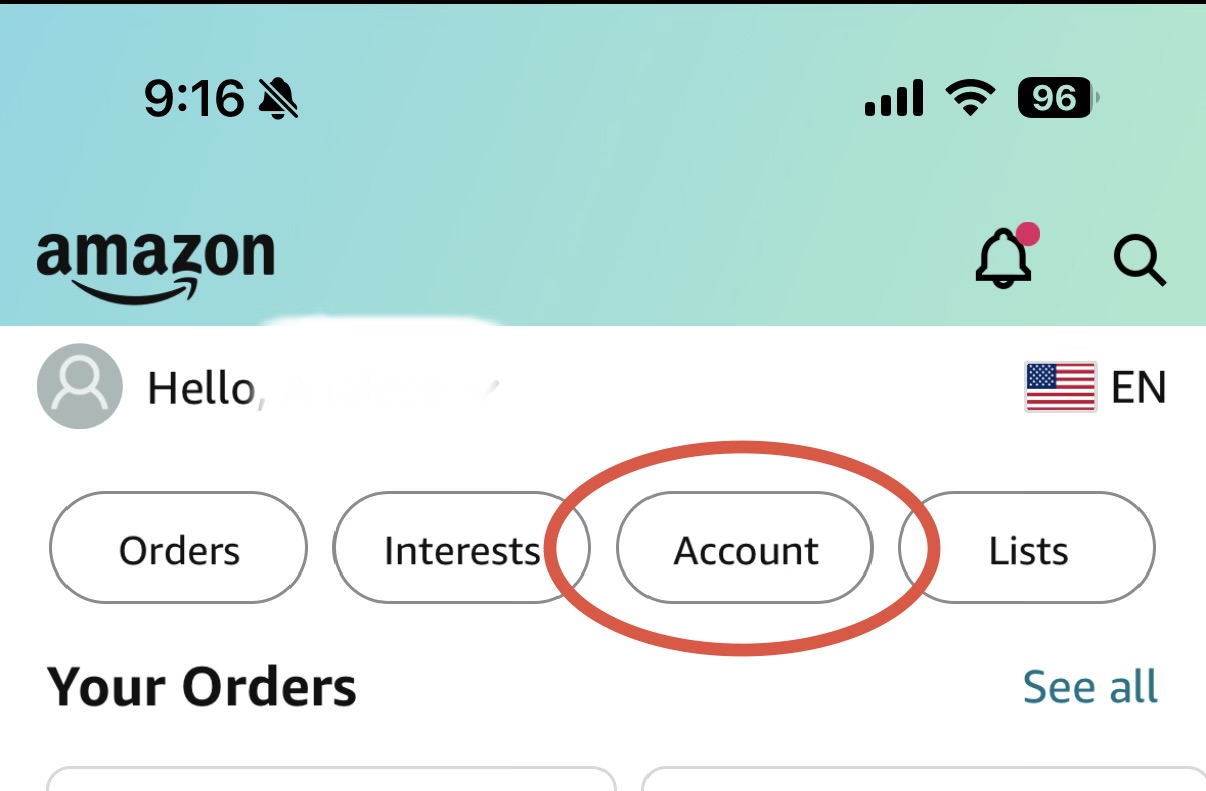
First, open up your Amazon app.
Click “Account”
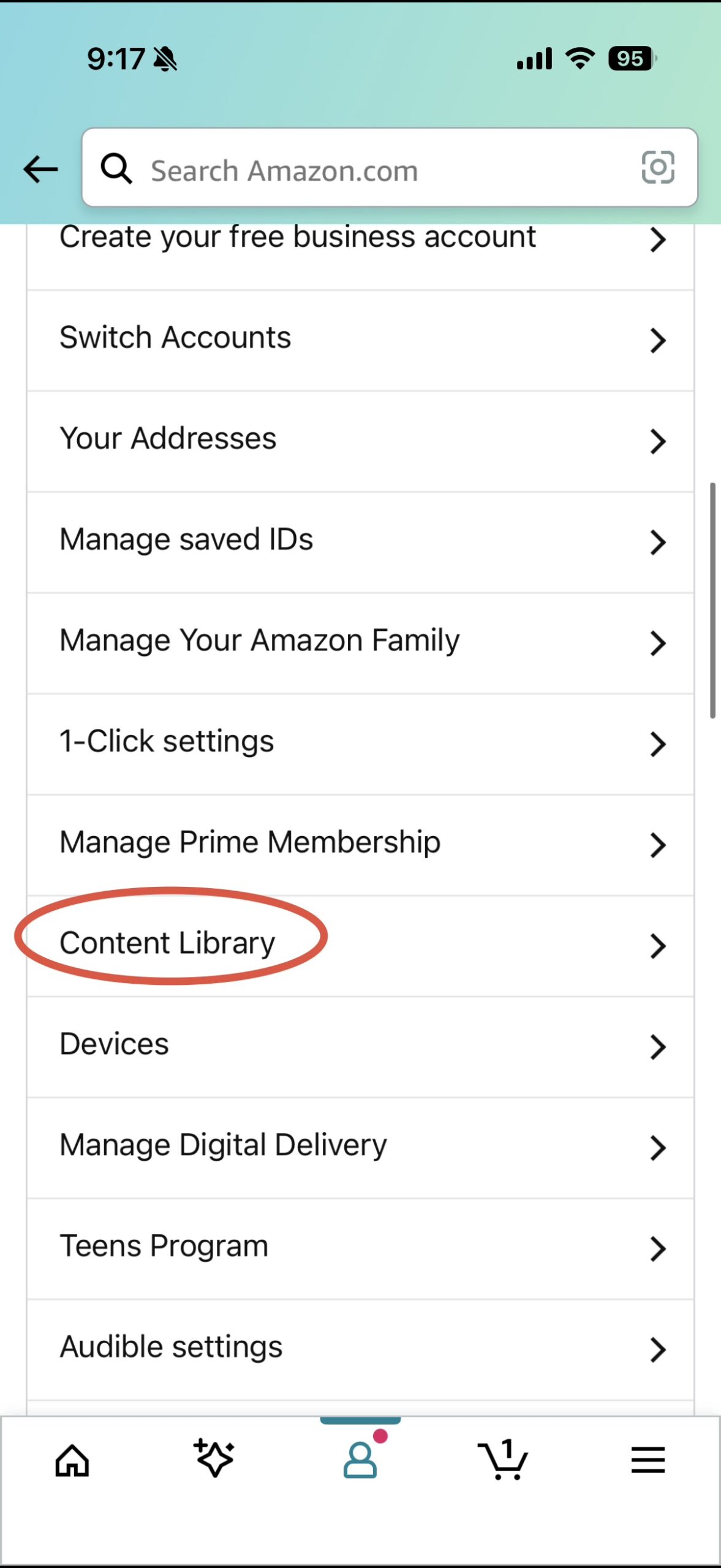
Scroll down until you see “Content Library”. Tap that.
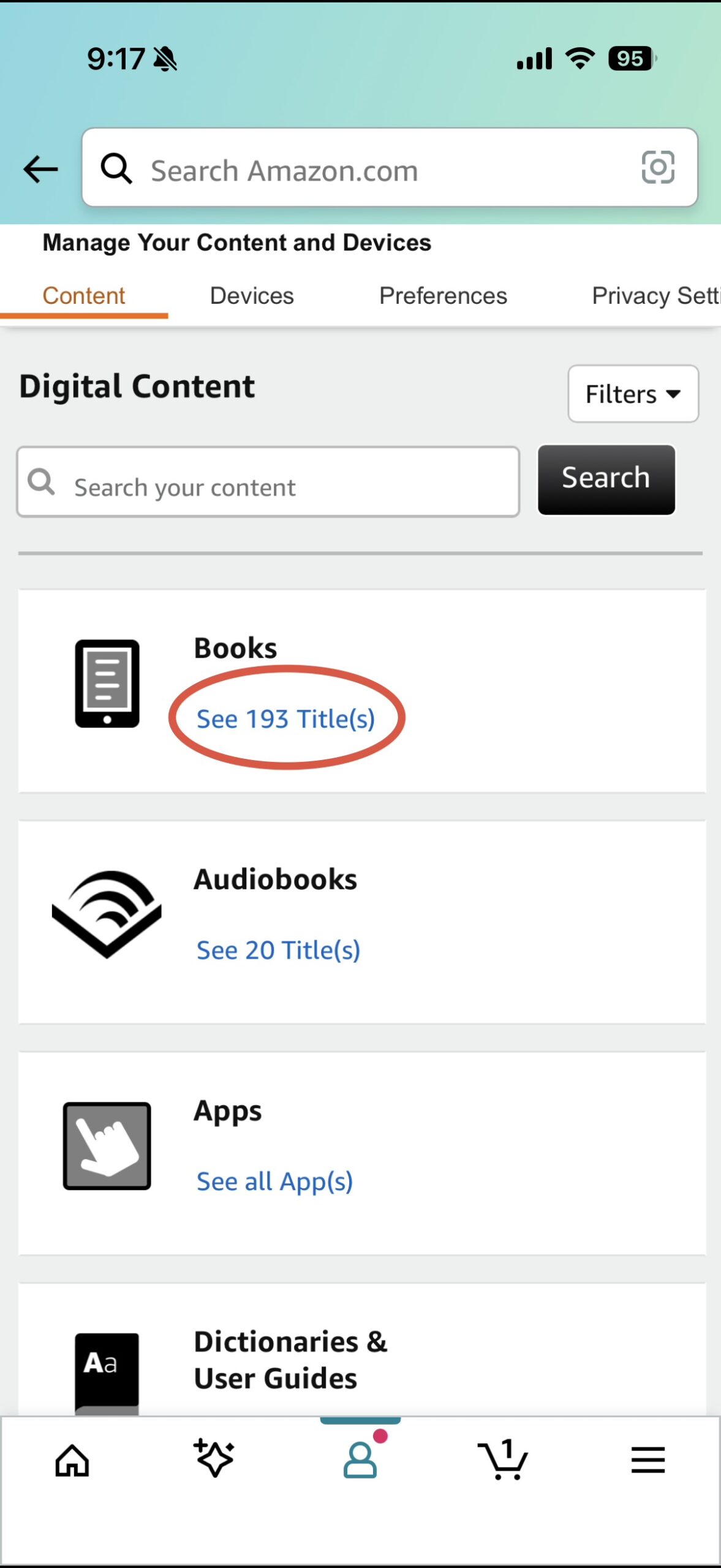
Below the book option, click on “See ___ Titles.” Mine specifically said “See 193 Titles.”
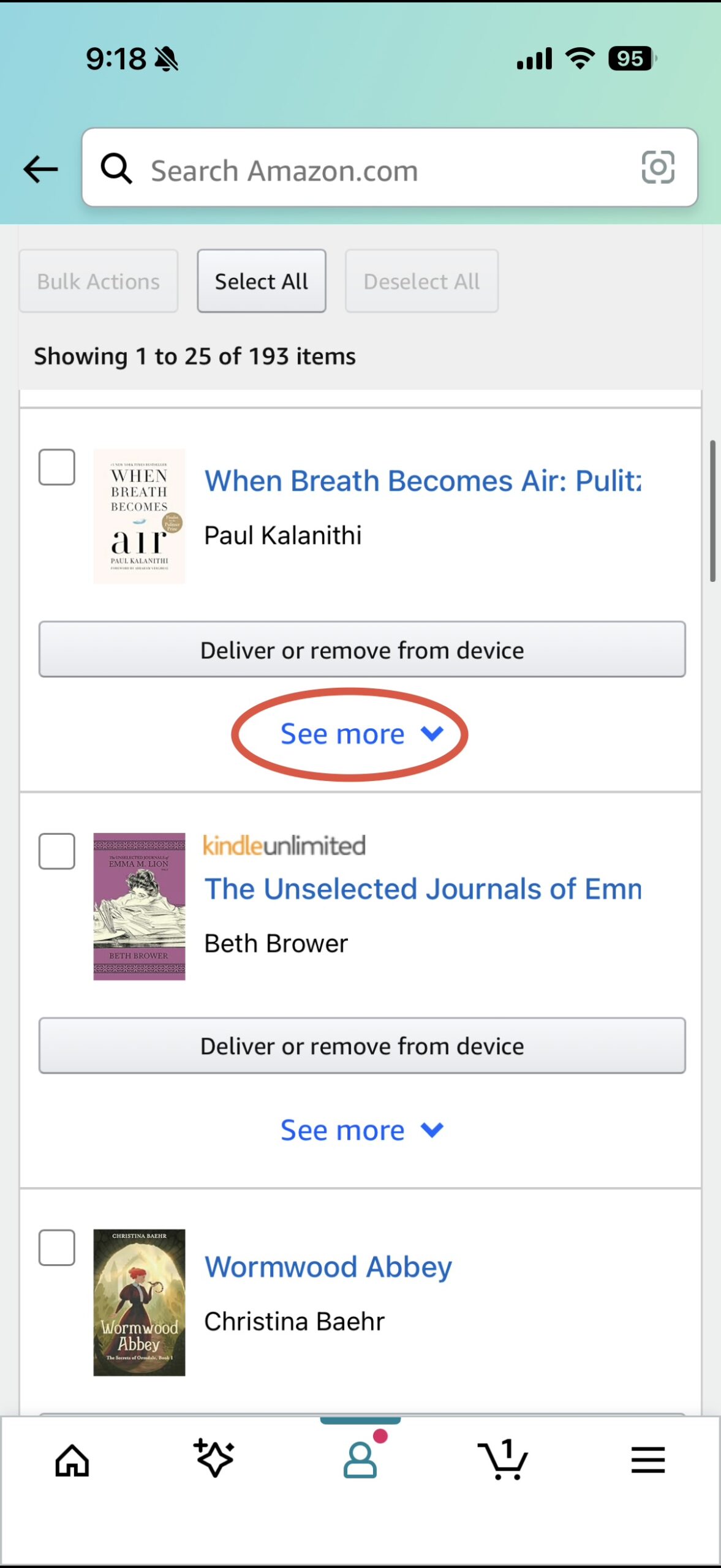
Scroll down to the book you want to return and click on “See More.”
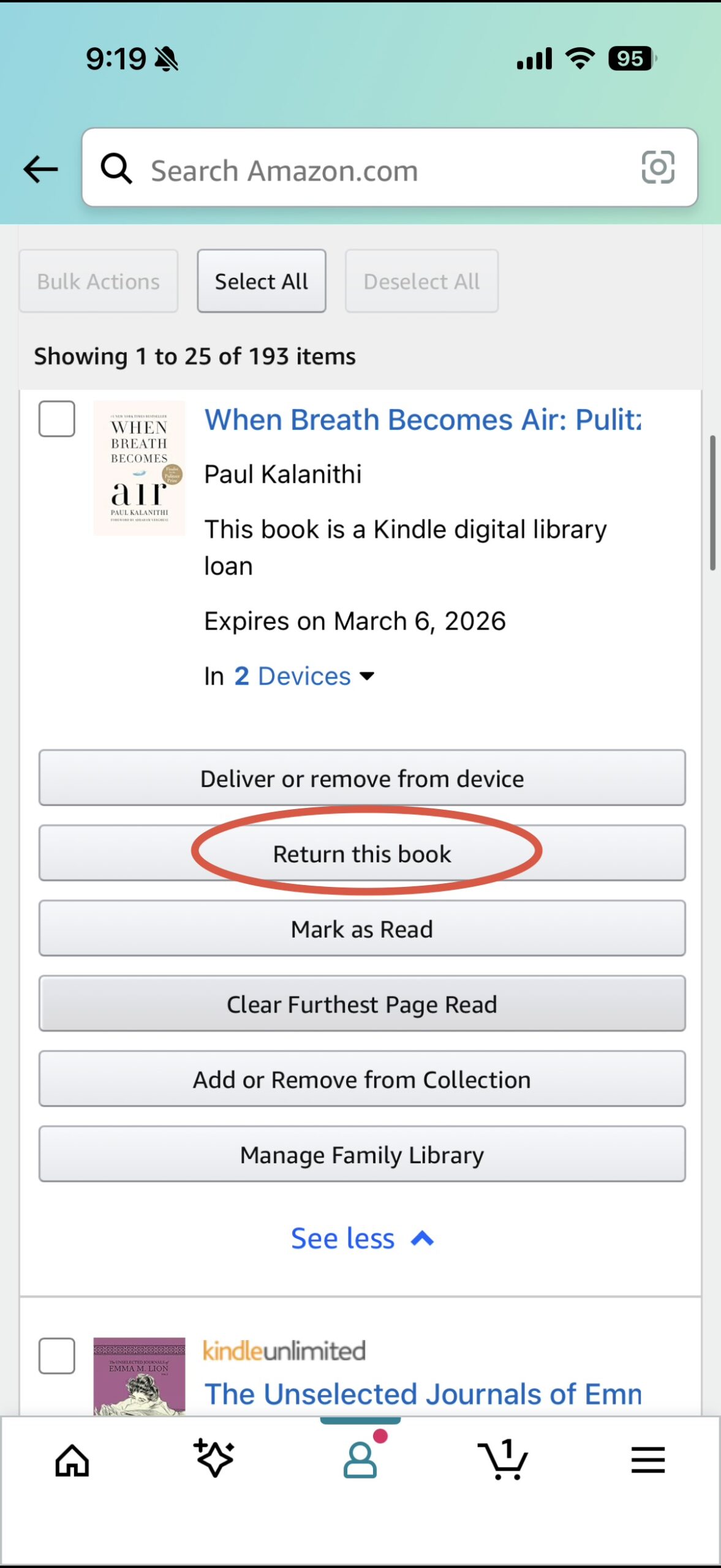
Select “Return this Book.” It will confirm again to “return this book” before actually returning it. Select “Yes” and there you have it!
I hope this helped you navigate returning Kindle books to your library. Let me know if you have any follow up questions!