
How to Use Libby Deep Search
As a life-long library user, Libby is one of my most used apps!
If you’re new to Libby, it is the app many libraries use to provide their patrons with ebooks and audiobooks that you can check out right from your phone or computer or tablet. (Many libraries also provide magazines!).
Some libraries have a robust selection of books and audiobooks available on Libby and others may be very sparse. The library or library system makes the decisions about which ebooks and audiobooks to add to their collection. It’s like a pantry – the builder puts a pantry in a home, but the homeowner decides how much and what to stock the pantry with and the builder has nothing to do with it.
(Which many people don’t understand – they’ll tell me that a book is on Libby, not realizing that not everyone using Libby will see the same thing!).
The good news is, you have a say on what’s part of your library Libby catalog!
Libby deep search lets you find books that exist in the Libby catalog, but your library doesn’t have in their collection yet.
Once it comes up in deep search you can notify your library you want them to buy it. If your library does purchase it, you will get a notification once they do so you can either check it out or put it on hold!
Here how use Libby deep search:
Open up the Libby app.
Type the title of the book in the search bar. Make sure your search is specific enough for the catalog to find. If there are too many options within that search, the book you are searching for won’t pull up. Including the author in your search will provide much more accurate results.
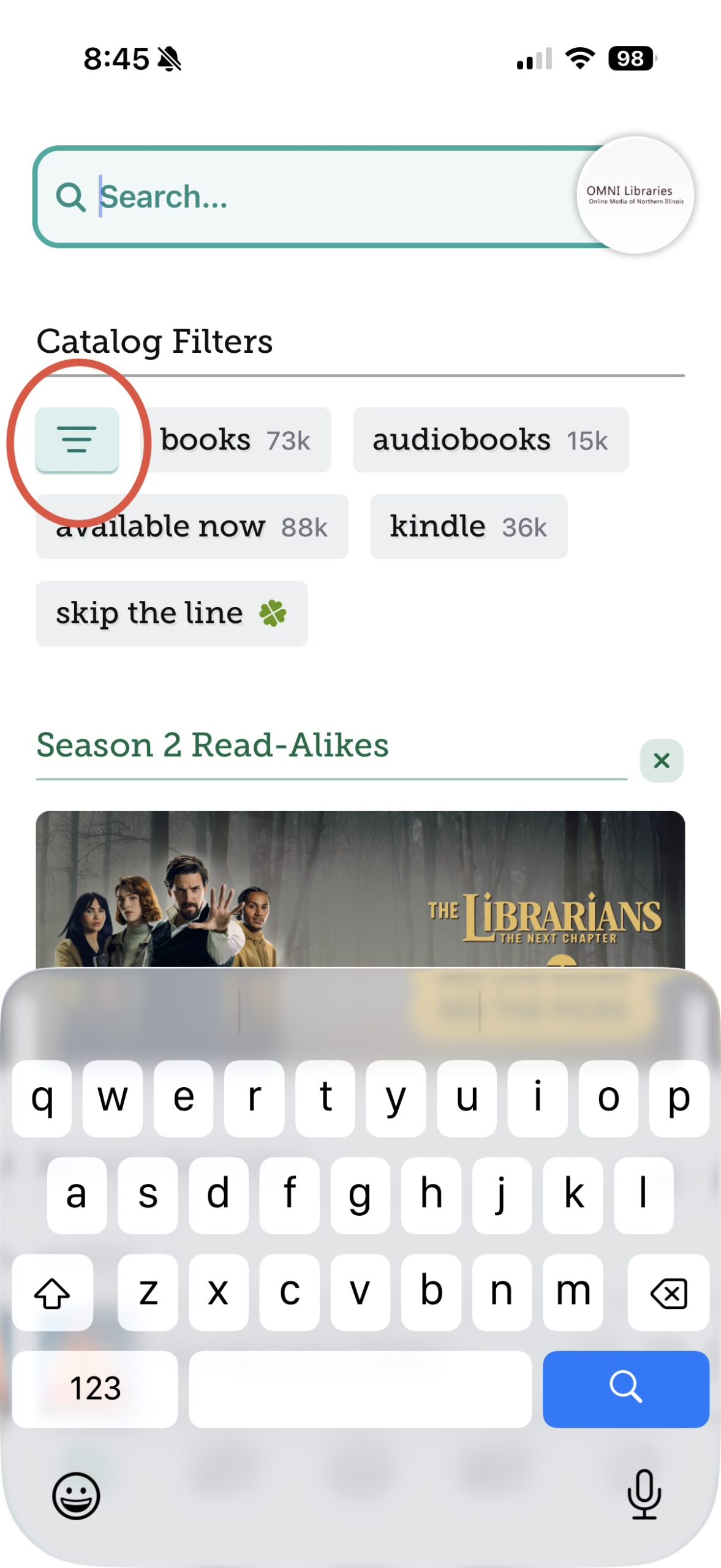
If the book doesn’t pull up even after a specific search, click the three lines.
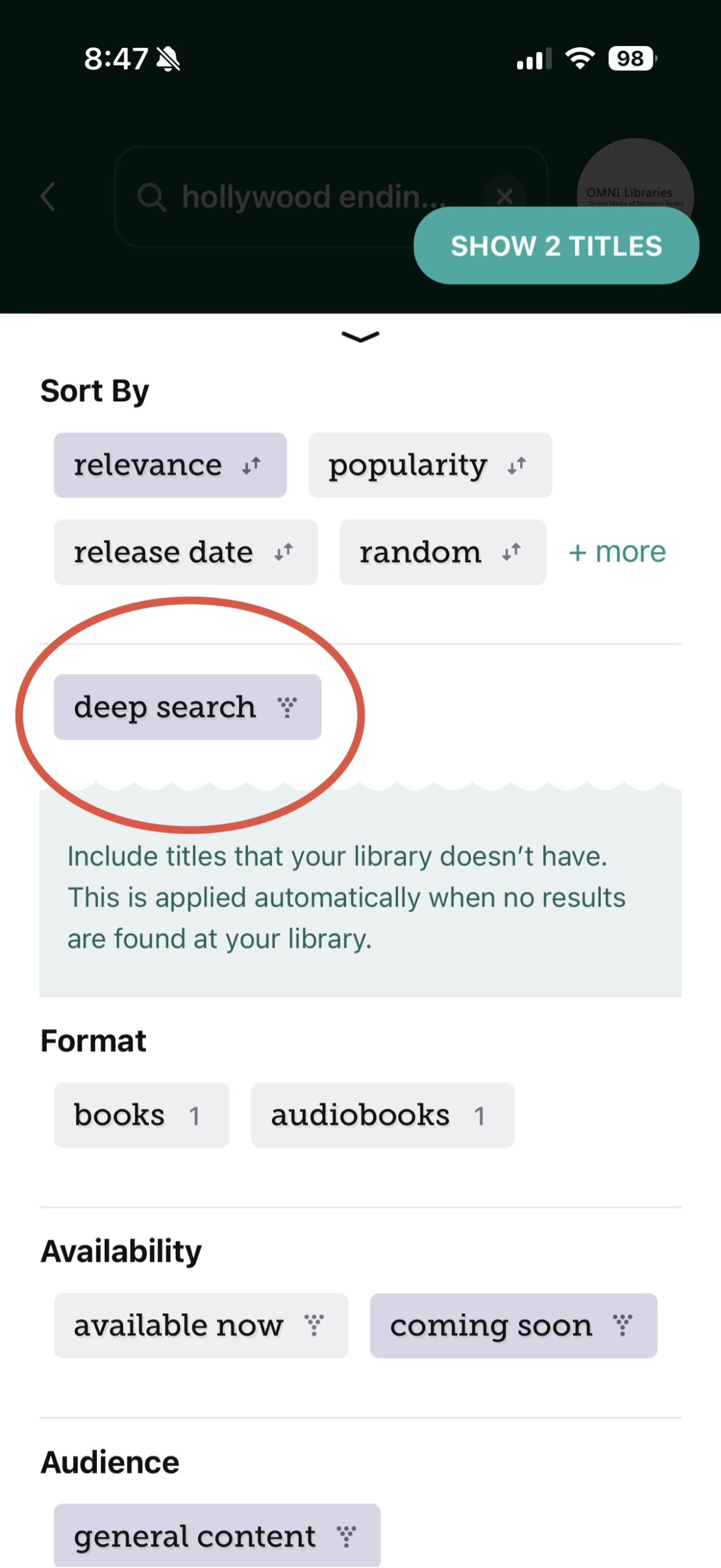
Scroll down until you see the option “deep search.” Once you see deep search, turn that on.
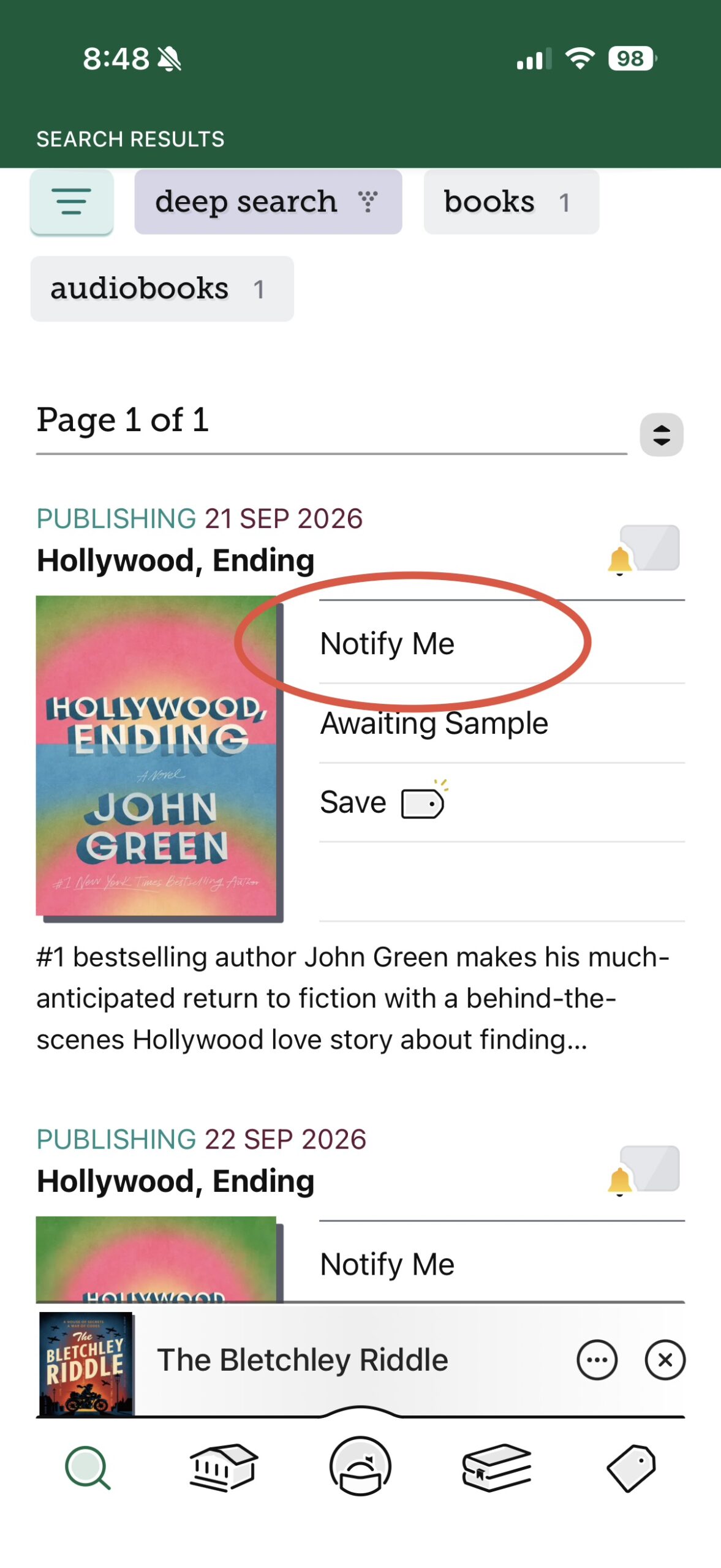
Now that you have selected that deep search option, the book should pull up. Simply select the “Notify Me” button! If your library buys it, you will be the first to know they now have it in their catalog!!
I hope this helps make your library Libby catalog better!
If you have any questions about Libby deep search, please let me know in the comments and I’ll do my best to answer!







Can you get the Libby app without a library membership? If so how?
Our library here uses Hoopla and I miss Libby so much!
Hi!
I tried a deep search on Libby and the title still does not show. I’m not sure what to do next. 🙂
Hi Michelle, you can always request the library order the book if it is not something they have in their inventory. https://everyday-reading.com/request-library-to-buy-book/
Kelsey