How to Delete Books From Your Kindle
If you have a Kindle reader, you’ve likely had a library that has been overloaded with past books you want to delete.
Whether they are ebooks you have borrowed from the library or ones you have purchased, I’ll show you how you can clean up your library.

Couple of things to note, before we get started.
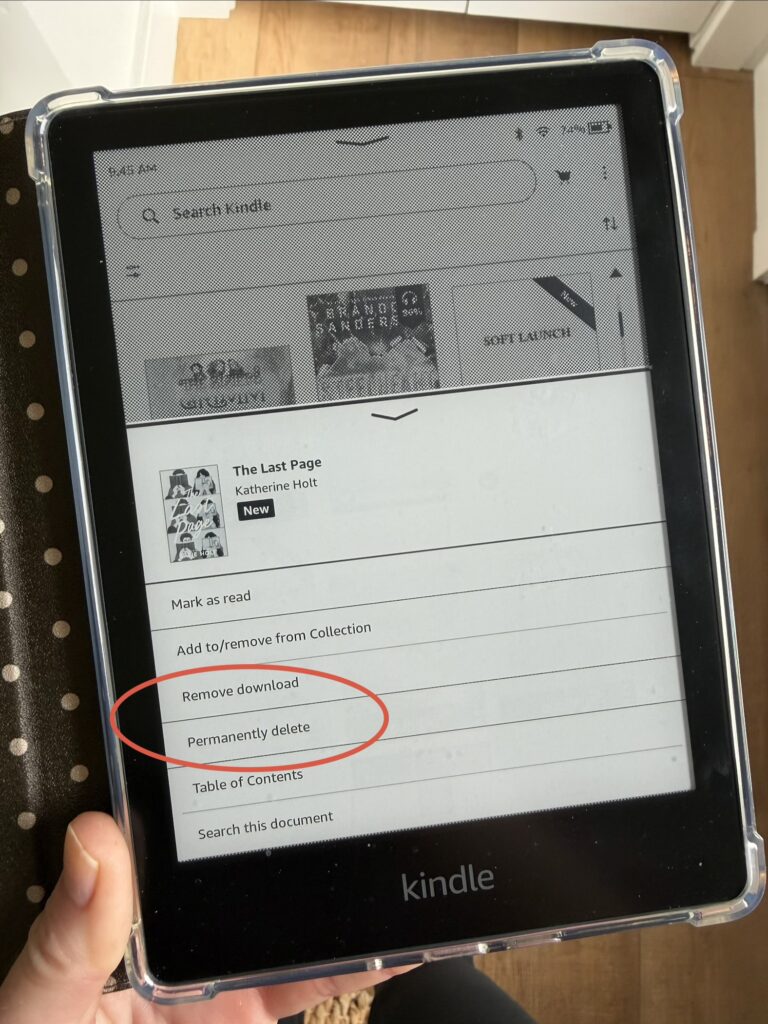
- “Remove download” frees up space on your Kindle, but you still own the book if you have purchased it. Meaning you can go back to it anytime and redownload it.
- “Permanently delete” is exactly as it says – it will forever delete the ebook. If you want to get back to it at any point, you will have to repurchase the book.
- There is no way to remove a purchased Kindle book from your library view unless you permanently delete it.
- In a Kids Kindle account, you can only remove download. You don’t have the ability to permanently delete any book.
How to Delete Books Using Your Kindle ereader
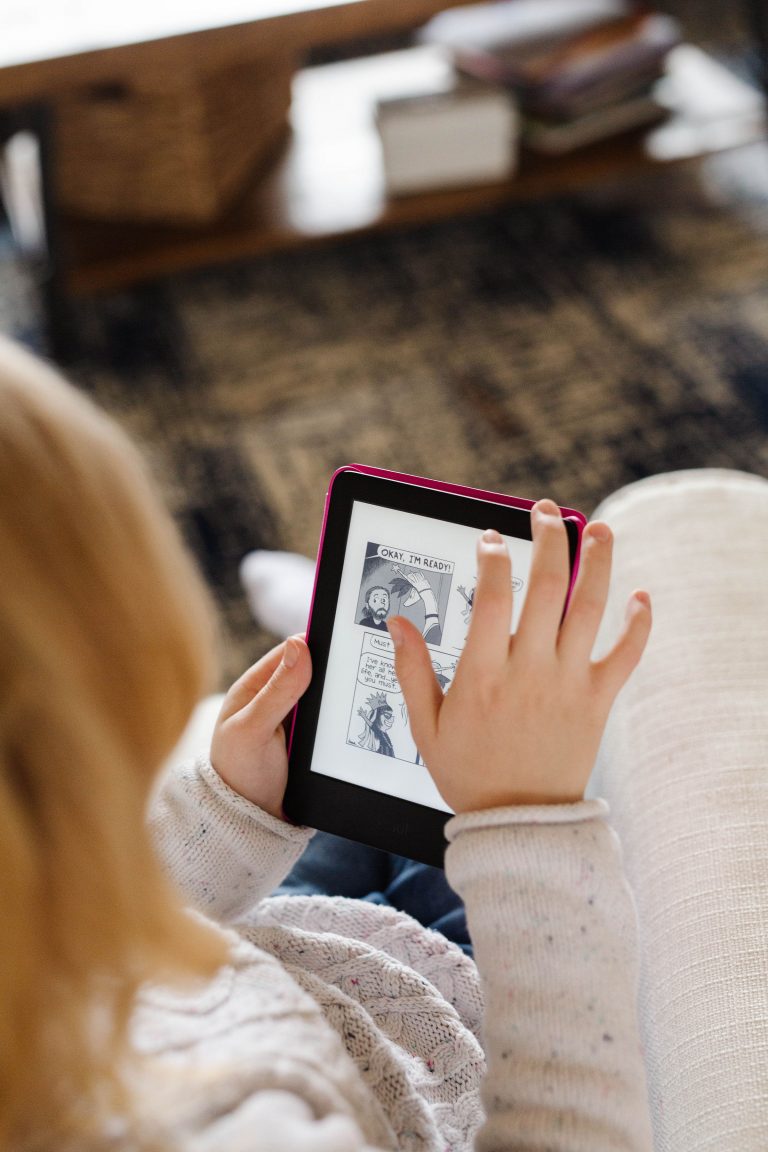
First, make sure you are in your Library. Find the book you want to delete and tap the three dots in the top right corner on the cover of the book.
Select “Remove Download” to delete the book from the device only. If you want it gone forever, select “Permanently Delete.” You will no longer see it on any of your devices or in your Amazon account.
And that’s it!!
An alternative method is to long hold on the book cover and the same options will pop up for you.
How to Delete Books Using Your Kindle App
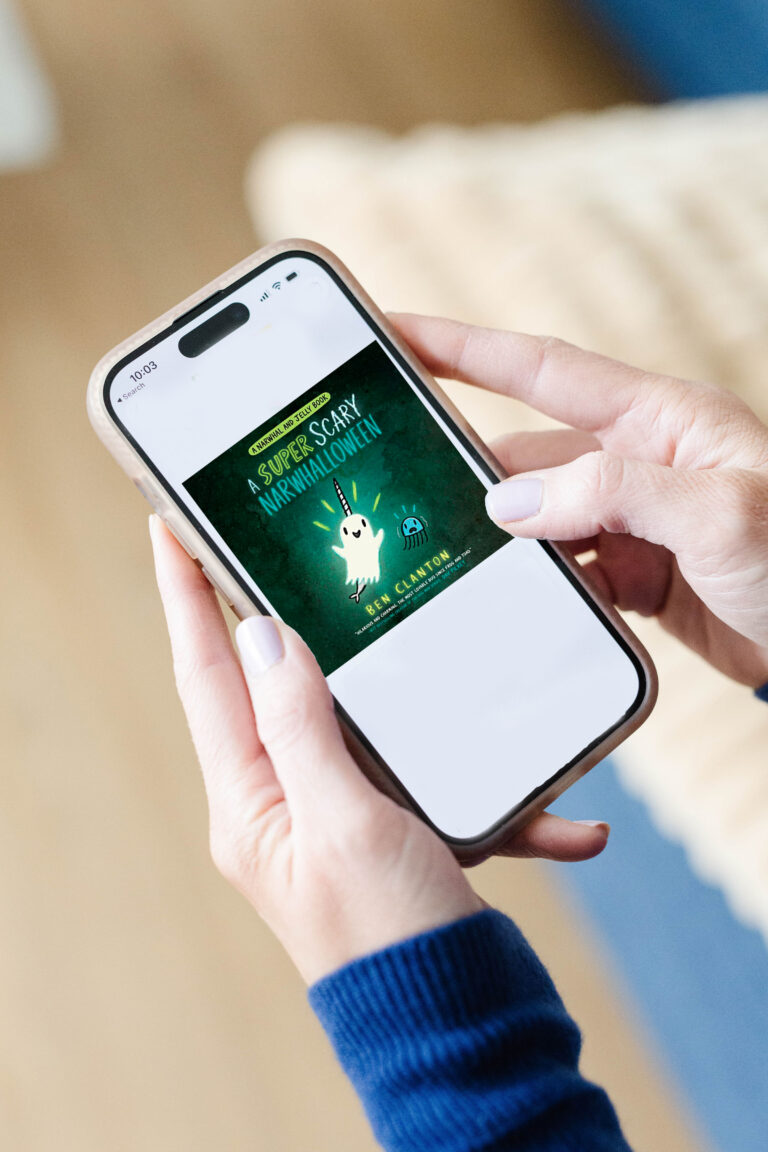
Open up your Kindle app and go to the Library.
Long press on the book cover you want removed.
Your options will look a little different if you purchased or borrowed the ebook.
If you borrowed the book from your library, you will select “Remove from Library.”

A prompt will pop up like the one below. If you are okay with the conditions, tap “remove” and you will no longer see this book on any of your devices.

If the ebook is one you purchased and no longer want, you will select “permanently delete.” Again, you will have to repurchase if you ever want access to it.

Now you know everything you need to know about deleting books from your Kindle! I’d love to know if you have any questions or follow up questions after trying it.